
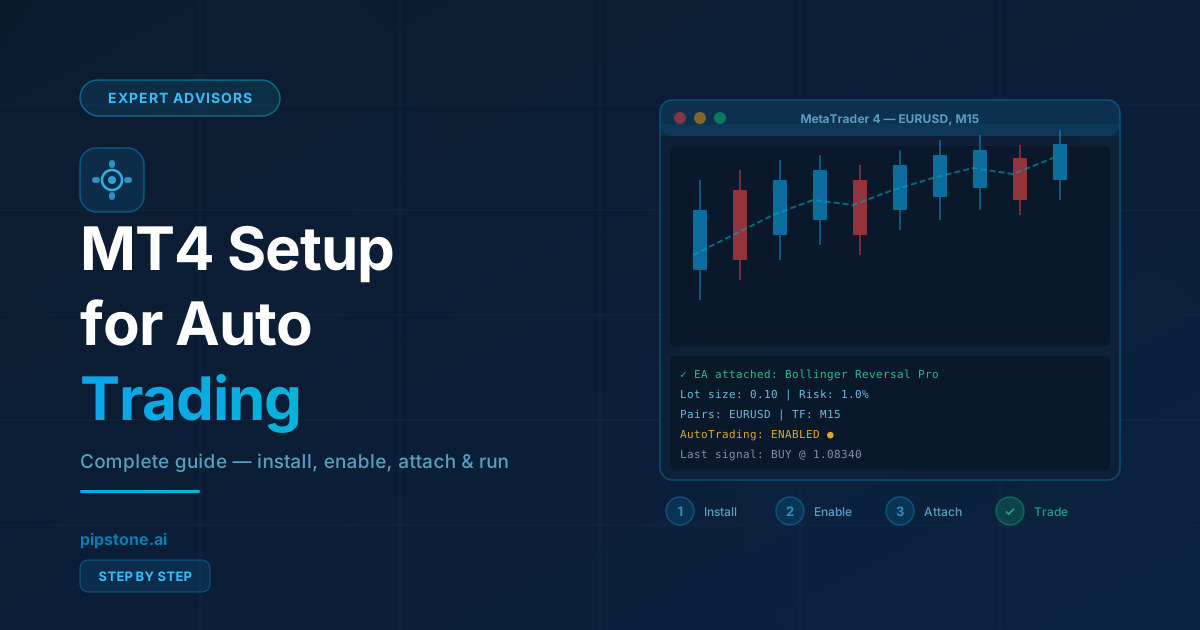
How to Set Up MT4 for Automated Trading — A Complete Guide
Getting MT4 ready for automated trading takes less than 20 minutes — if you know the right steps. Here's exactly how to set it up and run your first EA correctly.
Pipstone Team
Updated February 23, 2026
Before You Start: What You'll Need
To run an expert advisor on MT4 you need: a broker account that supports MT4, the MT4 platform installed, and an EA file (.ex4 or .mq4). All three are freely available — MT4 is free to download from your broker's website.
Step 1 — Download and Install MT4
Go to your broker's website (IC Markets, Exness, XM, or any MT4-supported broker) and download the MT4 installer. Run it and log in with your account credentials. If you don't have an account yet, open a demo account — it's instant and free.
Step 2 — Enable Automated Trading
In MT4, click Tools → Options → Expert Advisors and check "Allow automated trading". Also check "Allow DLL imports" if your EA requires it. Without this, no EA will execute trades.
You'll also see the AutoTrading button in the toolbar — it must be green (on) before any EA can trade.
Step 3 — Install the EA File
- In MT4, go to File → Open Data Folder
- Navigate to MQL4 → Experts
- Copy your .ex4 (or .mq4) file into this folder
- Restart MT4 — the EA will appear in the Navigator panel under "Expert Advisors"
Step 4 — Attach the EA to a Chart
Open the chart for your target pair and timeframe. Drag the EA from the Navigator panel onto the chart, or double-click it. A settings window will appear — configure lot size, risk parameters, and any strategy-specific inputs before clicking OK.
A smiley face icon in the top-right corner of the chart means the EA is active and monitoring for signals.
Step 5 — Use a VPS for 24/5 Running
EAs only trade when MT4 is open. If you close your laptop, trading stops. To run an EA 24 hours a day during the trading week, use a VPS (Virtual Private Server) — most brokers offer a free or discounted VPS for active accounts, and services like Beeks or MT4 VPS start from $30/month.
Common Setup Mistakes
- AutoTrading button is off — the most common reason an EA doesn't trade
- Wrong timeframe — attach the EA to the timeframe it was designed for (check the EA documentation)
- Lot size too high — always start with 0.01 lots on a demo account to verify behavior
- DLL imports blocked — some EAs require DLL imports; enable this in options if the EA shows an error
Getting EAs from Pipstone.ai
All EAs available on Pipstone.ai come with setup documentation, recommended settings, and support. Download any EA from the Tools Library and follow the included instructions for your specific strategy.
Ready to start trading smarter?
Get free professional EAs, earn cashback on every lot, and chat with Pip — Pipstone.ai's AI trading assistant. Free to join.